

Turn it on for a GitHub repository
In a workspace, open Repositories, choose Add repository, pick the repository and turn on Git proxy. For a repository that’s already added, open Organization, then Git proxy. The choice applies to the repository in every workspace of the organization. Only admins can turn it on or off.Turn it on for a Forgejo or Codeberg host
On a Forgejo or Codeberg host, KolaOS publishes as one account that you create for it, called the publishing account. You need to be an admin in KolaOS and able to create an account on the host.1
Create the publishing account
Create an account on your Forgejo host, or a new Codeberg account, for KolaOS to publish with. Don’t make it a site administrator, because KolaOS refuses an administrator’s token. Give the account write access to every repository of the host that your workspaces use, either as a collaborator with Write on each repository or as a member of an organization team with write access.
2
Create an access token for it
Sign in to the host as the publishing account, open Settings, then Applications, and choose New access token. Under Repository and organization access, choose All, so that repositories you add later work too. Set issue to Read, repository to Read and write and user to Read, then choose Generate token and copy the token.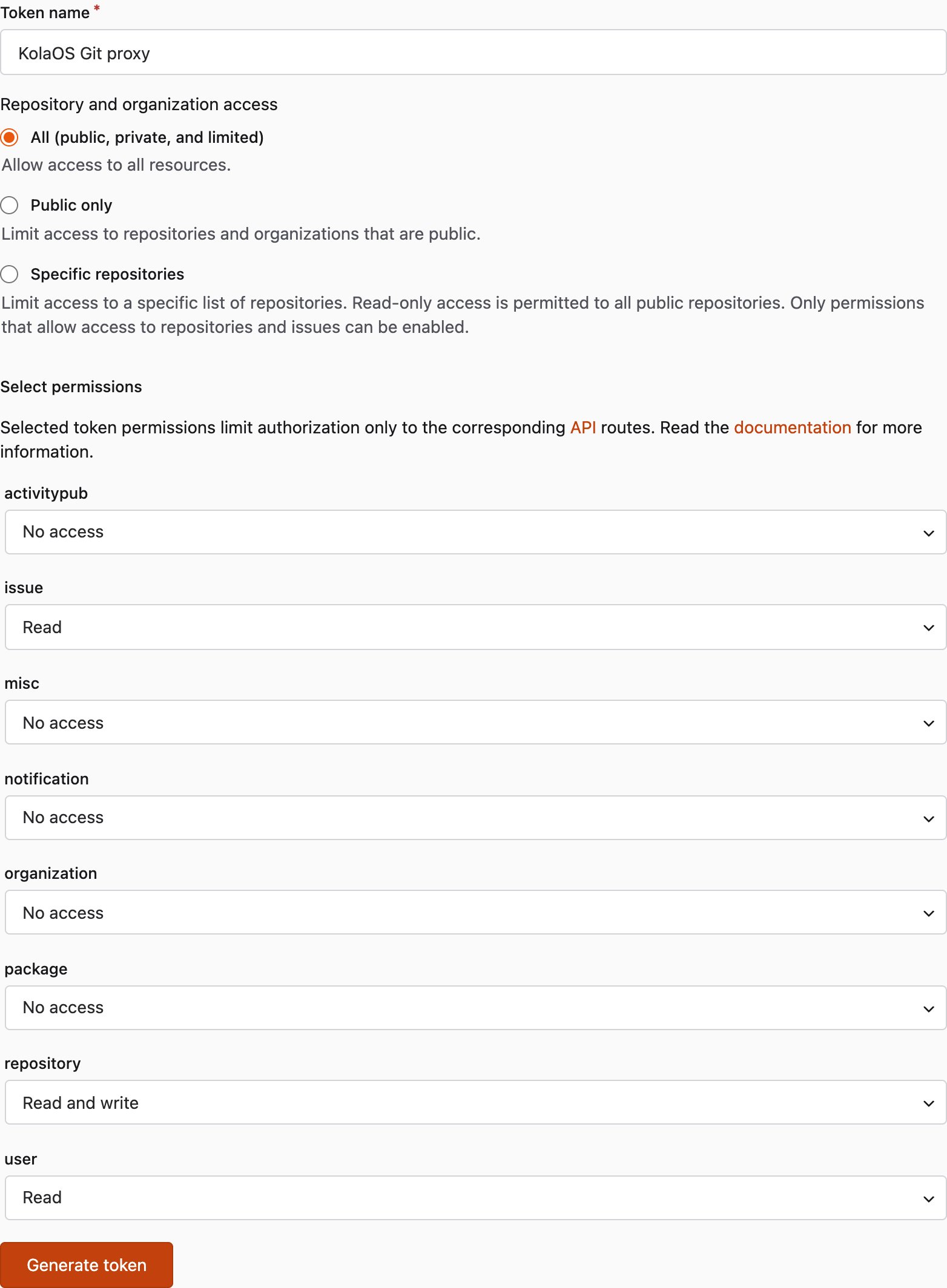
3
Paste the token in KolaOS
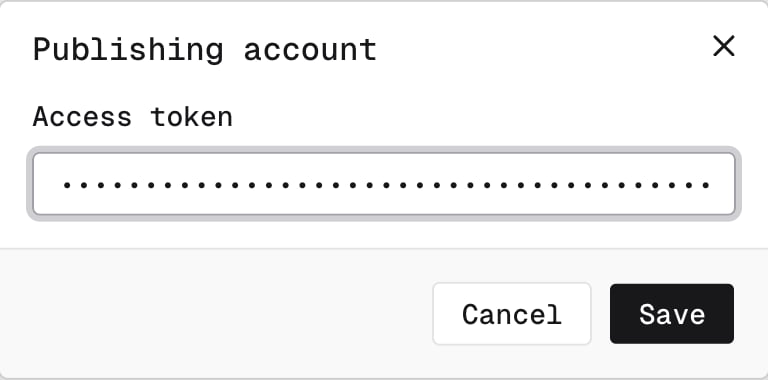
In KolaOS, open Organization, then Integrations, and open the host. In the Git proxy section, choose Set publishing account, paste the token and choose Save.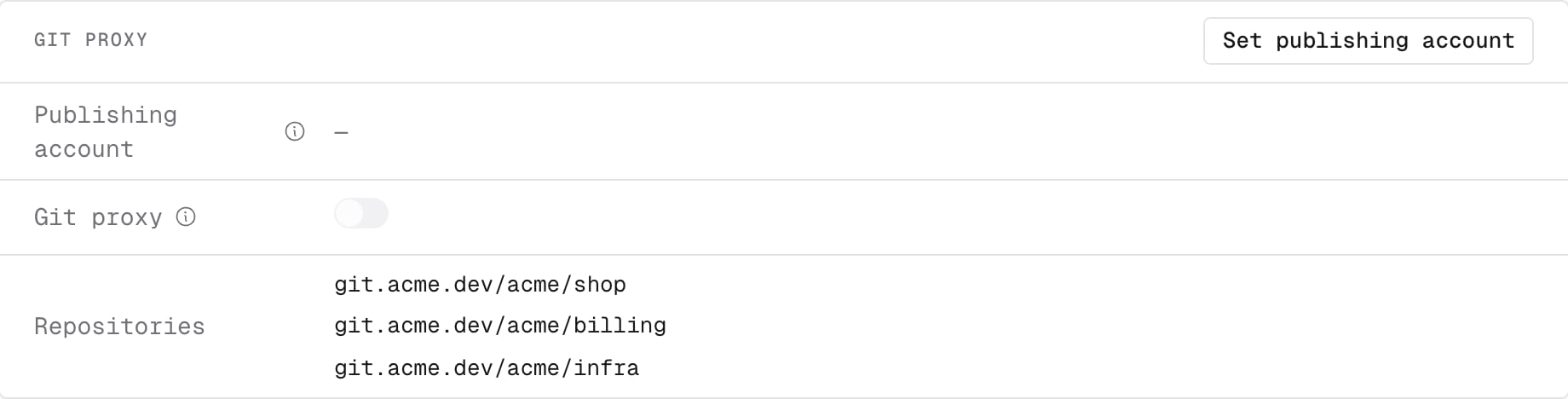
4
Check that the account can push to every repository
The section lists every repository of the host that a workspace uses, with Can push or Can’t push. Give the publishing account write access to each repository marked Can’t push, then reload the page.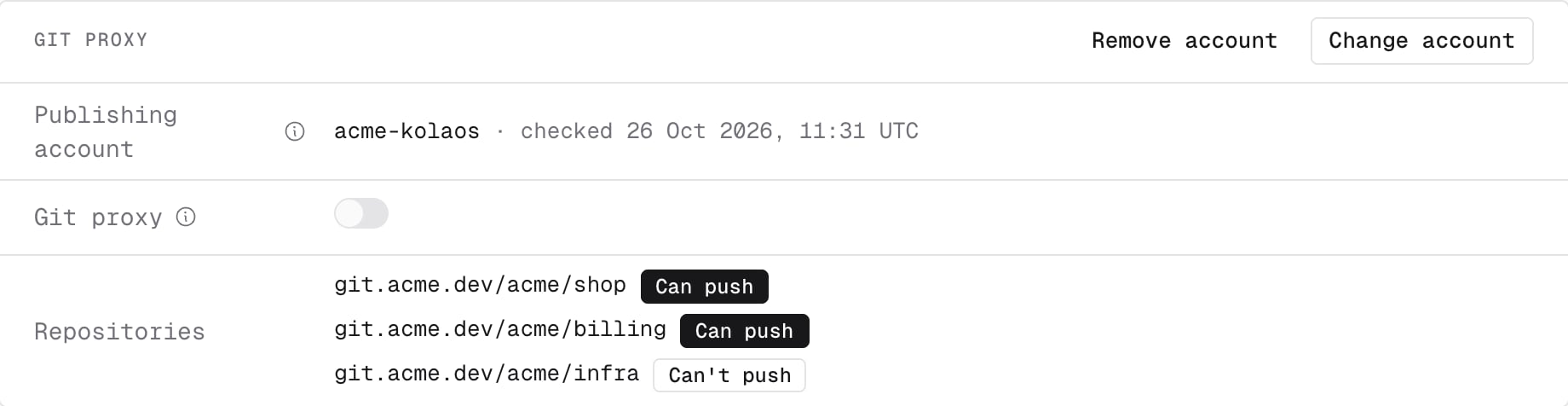
5
Turn on the Git proxy
Turn on Git proxy in the same section. KolaOS turns it on only when the publishing account can push to every listed repository. From then on, every repository of the host goes through the Git proxy, including repositories added later, and workstations get no token for the host.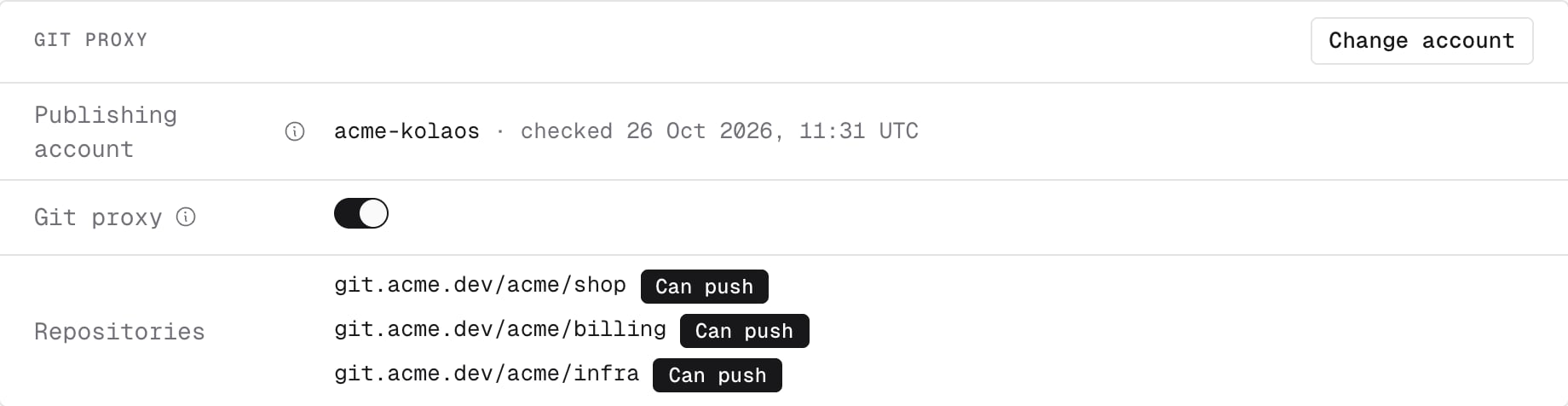
6
Check the result
Open Organization, then Git proxy. Each repository of the host is listed with Proxied, or with Pending for up to an hour while tokens that workstations received earlier expire.
Work in the Git proxy
Workstations clone the repository from the Git proxy, and existing checkouts switch to it on their own.git and tea need no sign-in. Push to branches named agent/<login>/<topic> or member/<login>/<topic>, then open a pull request with tea pr create. main and every kola/ branch are read-only.
Review and publish
Open the Git proxy from Repositories or from Organization, then Git proxy, and review the pull request there. When someone other than its author approves its latest commit, KolaOS pushes that commit to the branchkola/<branch> on your git host and opens a pull request there. Comments, reviews and failed checks on that pull request come back to the Git proxy, so an agent can fix them and push again.
With Review before publish off for a repository, a pull request publishes as soon as it is ready, and the review happens on your git host.
What changes on your git host
On GitHub, every push from the Git proxy comes from the KolaOS GitHub App. On Forgejo and Codeberg, every push comes from the publishing account. In both cases KolaOS pushes only to branches that start withkola/, and it never merges and never pushes main.
Protect your default branch so that KolaOS can’t push to it and a pull request from KolaOS needs your own review before it merges. On GitHub, use a rule or ruleset that the KolaOS app can’t bypass. On Forgejo and Codeberg, add a branch protection rule for the default branch that leaves the publishing account out of the accounts allowed to push. Your CI runs on the published branch as it runs on any pull request, so it runs only on reviewed code.
Turn it off
For a GitHub repository, open Organization, then Git proxy, and choose Turn off on the repository. For a Forgejo or Codeberg host, turn off Git proxy on the host’s page, which takes every repository of the host out of the Git proxy, and workstations get each member’s token for the host again. You can remove the publishing account only while the Git proxy is off for the host.Limits
- A token that a workstation received before you turned the proxy on stays valid for up to an hour. The repository shows Pending until then.
- A workstation can still reach your git host on the internet. It holds no credential for a proxied repository, so it can’t read or push a private one.
- On a Forgejo or Codeberg host, the Git proxy covers every repository of the host or none of them.
- KolaOS stores the publishing account’s token encrypted, and the Git proxy uses it for every repository of the host. Give the account access only to the repositories your workspaces use.
- The Git proxy keeps its reviews and unpublished branches on one node. If that node is lost, they are lost. Published work and workstation clones are not.